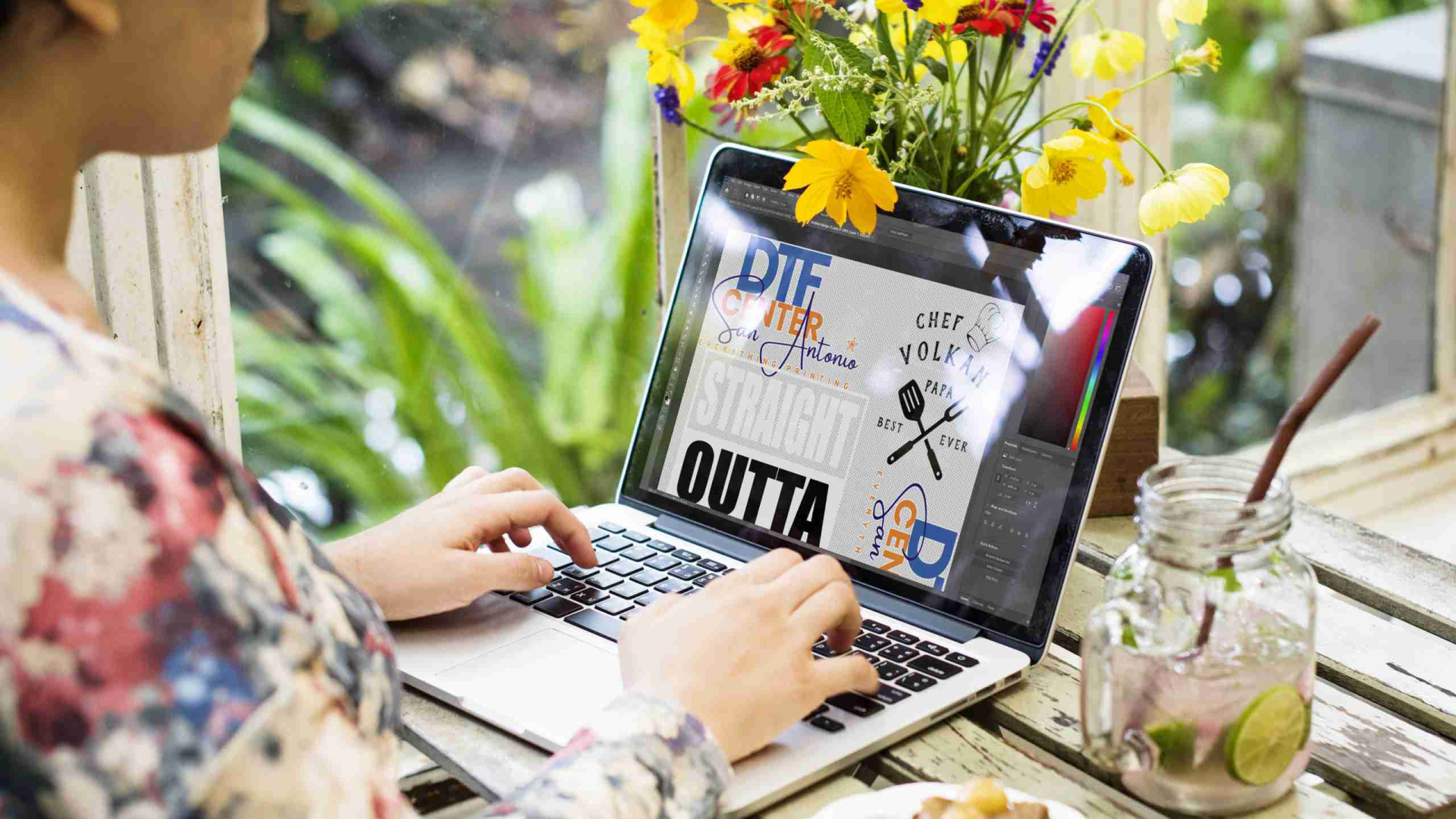
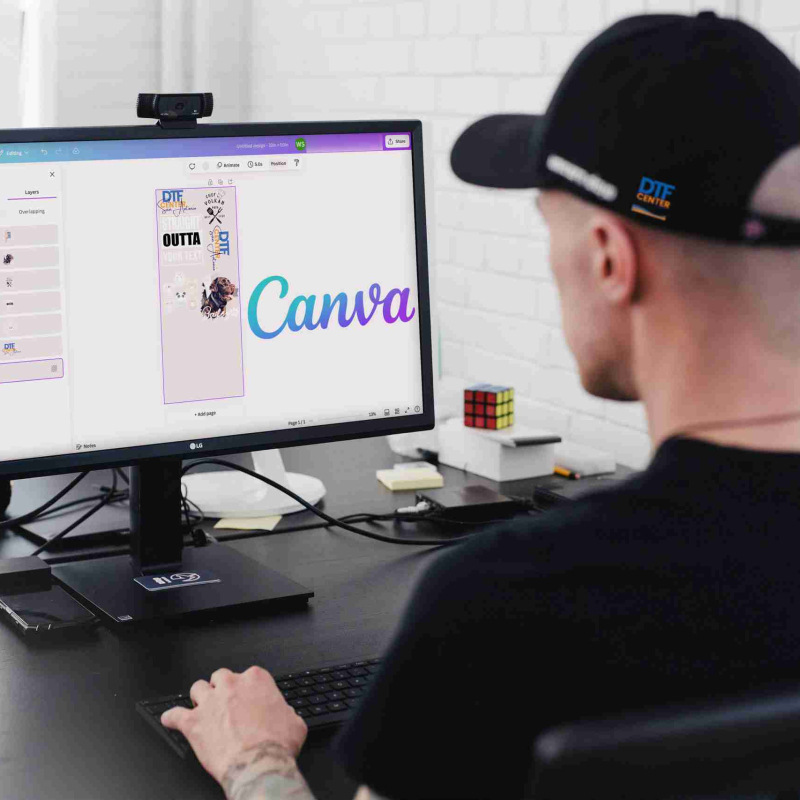


Want to combine multiple designs on one sheet and print them all at once? Using a gang sheet in Photoshop gives you total control over layout and quality. Follow this clean step-by-step guide to build a perfect DTF gang sheet. 🎨🖨️
What Is a DTF Gang Sheet and Why Use Photoshop
A “gang sheet” is a single large sheet that holds many different designs (or multiple copies of the same design) — all on one transfer film or sheet. This method lets you print multiple graphics at once instead of submitting one file per design.
Using Photoshop gives you full control: you can precisely arrange designs, set exact sizes, and output high resolution files ready for printing.
Step-by-Step Instructions
Step 1: Create a New Document
Create a new document.
Set the width to
22 inches (or the width your printer supports).
Set the height to what you need (for example 60 inches or more depending on how many designs you plan to put).
Set resolution to
300 DPI for high quality prints.
(Optional) Use a colored background temporarily so you can better see white or light-colored designs while laying out.
Step 2: Import Your Designs
- Open your design files (preferably PNGs with transparent backgrounds).
Trim away any extra whitespace around each design so you only have the artwork itself.
Copy and paste each design into your gang sheet document in Photoshop.
Step 3: Arrange Like Sticker Tetris
- Resize and arrange your designs like pieces in a puzzle — stacking them to maximize space.
Leave a safe gap between each design (for example half an inch) so you can cut or separate them later.
Use Photoshop guides and rulers to help keep spacing consistent and designs aligned.
Step 4: Align and Organize Layers
- Use Photoshop’s alignment tools or guides to line up your designs neatly.
Consider converting each design layer into a Smart Object — this lets you resize or adjust it later without losing quality.
Name your layers clearly so you can easily find and edit them later if needed.
Step 5: Final Check Before Export
- Zoom in and carefully check that no design overlaps or runs off the canvas boundary.
Confirm that spacing between designs is sufficient for cutting or separation.
Make sure all designs look sharp (not pixelated) at 300 DPI.
Step 6: Export Your Gang Sheet
- Save or export the sheet as PNG or TIF.
If you use PNG and need transparent background, be sure to enable that option.
Optionally save a PSD copy so you can come back and edit the layout later if needed.
Pro Tips for Photoshop Gang Sheets 💡
- Always work with high resolution (300 DPI) artwork to ensure crisp final prints.
Use Smart Objects for designs so you can resize without quality loss.
Rotate or rearrange smaller designs to fill in gaps — pack efficiently.
Name your layers to stay organized, especially if you plan to reuse or reuse variations.
Use guides, rulers and snapping to keep your layout clean and aligned.
Why This Method Works Best
Using Photoshop to build your gang sheet gives you full control over placement, spacing, and size. Instead of dealing with multiple separate artwork files, you get a single print-ready sheet. This method reduces waste, saves time, and ensures consistency across multiple prints. 🚀
Once your sheet is exported correctly, it’s ready for DTF printing — and you’ll get clean transfers every time.